How to make a random seating chart
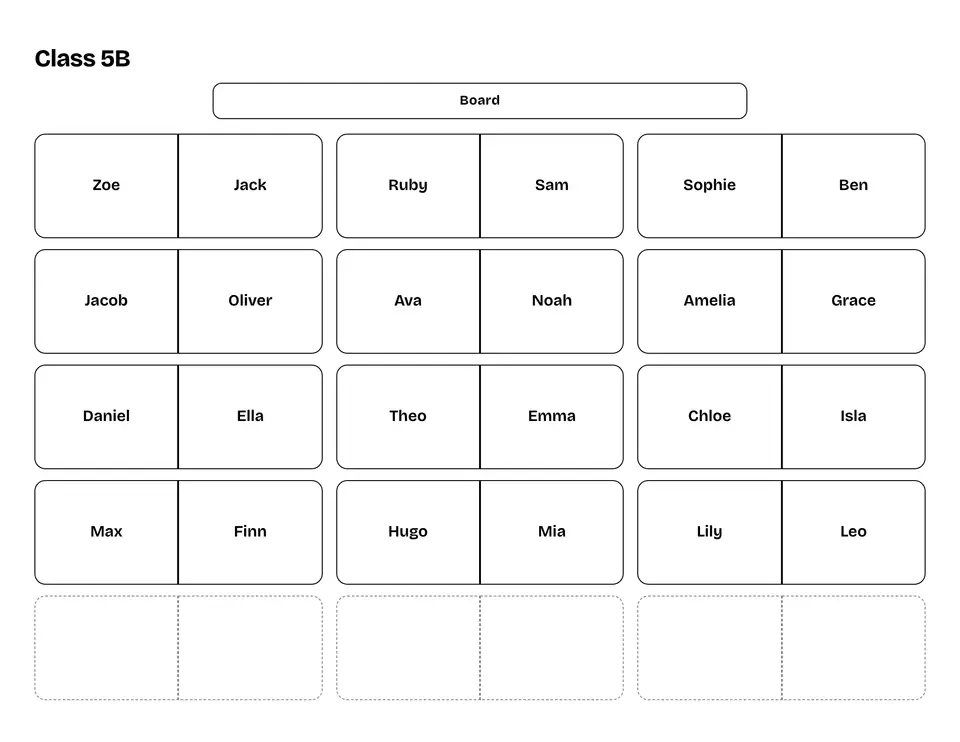
- Set up the room: the number of Rows, the Seats per row, and whether students sit at Single desks or Desks for two. The line below compares the seats with the number of students.
- Under Students, type or paste the class list, one name per line. A column copied from a spreadsheet, or a .txt or .csv file, works as it is.
- Under Rules, list the students who must not sit next to each other, one pair per line, like
Max + Leo. Then press Shuffle seats. - Tap a student, then another seat, to swap them, or press Pin to this seat to keep them there on every shuffle. When the chart is right, Print it, Share it as a link or Present it on the board.
Advertisement
When teachers use a random seating chart
The first day with a new class
You do not know yet who is friends with whom. A random chart gives everyone a fresh start, and the printed plan on your desk helps you learn the names in the first week.
A new plan every few weeks
Shuffle the class at the start of each month or term so students get new neighbors and work with people they would not pick. Pinned students keep their seats, everyone else moves.
Tests and exams
Switch to single desks, keep apart the students who like to compare answers, and print the chart for the classroom door so everyone finds their seat before the bell.
Seating needs and supply teachers
Pin a student who needs to sit near the board or close to the door. Leave the plan as a share link, and a substitute sees exactly who sits where without learning thirty names.
Advertisement
Questions about seating charts
Is the seating really random?
Yes. The secure random generator built into your browser shuffles the class and deals it into the seats, so every seating plan that keeps your rules is equally likely. With rules, the tool shuffles again until every rule holds, so nobody is placed by hand. Nothing is sent to a server.
What counts as sitting next to each other?
Two seats side by side in a row, or one directly in front of the other. Diagonal seats do not count. With Desks for two, side by side means sharing a desk, because the aisle runs between the desks.
What if the rules cannot all be kept?
Then the chart says so and names the pairs that still sit together, so you can add a row, switch to single desks or drop a rule. If the rules only work with some empty seats further forward, the tool moves those seats and tells you.
How do I give a student a fixed seat?
Shuffle once, tap the student and press Pin to this seat. To move them first, tap them and then the seat you want. Pinned students show a small lock and stay put when you shuffle again. Rules lists every pin with a button to remove it.
What happens when there are more seats than students?
With Fill the front rows first on (under Options), students take the front seats and the empty seats stay at the back. Turn it off to spread the empty seats around the room at random.
How do I print the seating chart?
Press Print. You get one landscape page with the title, the board and the seats, without buttons, page text or ads. Choose A4 or Letter under Options, or pick Save as PDF in the print window. Teacher's view turns the chart around so the board is at the bottom, the way you see the room from your desk.
Is it free, and where is the class list stored?
It is free, with no sign-up. The names stay in this browser and never reach a server; a share link carries the chart inside the link itself. If ads appear on this site, they sit beside or below the tool: never on the chart, in print or in Present mode.
Advertisement
More random tools
- Spin the wheelType a list, spin, get one winner.
- Random name pickerDraw one or more names, with no repeats.
- Team generatorSplit a list into fair random teams.
- Secret Santa generatorGift draw by private links, no email needed.
- Yes or no wheelA quick yes, no or maybe.
- Random letter generatorA starting letter for Scattergories.
- Random country generatorA country from any continent, with flag and capital.
- Random word generatorNouns, verbs or adjectives, easy or harder, for drawing too.
- Random Bible verseA well-known verse at random, or the verse of the day.
- Random name generatorReal first names and surnames by country, girl or boy.
- Random city generatorA town or city from 12 countries, Europe or the world.
- Random date generatorA date, month, day of the week or time of day.
- Random color generatorA random color with its HEX, RGB and HSL code.
- Random number pickerDraw one or many numbers from any range, no repeats.
- Bingo caller75 or 90 balls, read aloud, with a board for the projector.
- Printable bingo cards75, 90 or word cards, all different, with IDs.
- Raffle ticket generatorNumbered tickets with a stub, ready to print.